How to Complete Post-Work for Training Classes
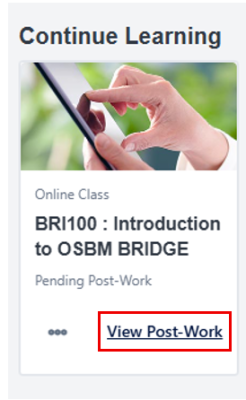
Log into your LMS account. You may see a card for the class that is pending post work. This should appear in the continue learning section with other classes or curriculum you have registered for or are in the process of completing. If you have this card, click "View Post-Work" in the card.
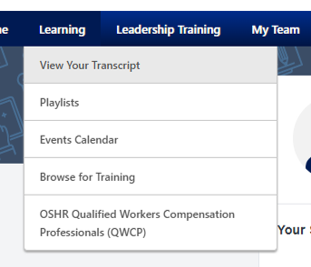
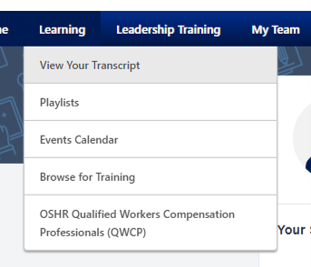
If you don't see a continue learning card like the screenshot above, go to your Transcript. The "View Your Transcript" option is under Learning in the main menu.
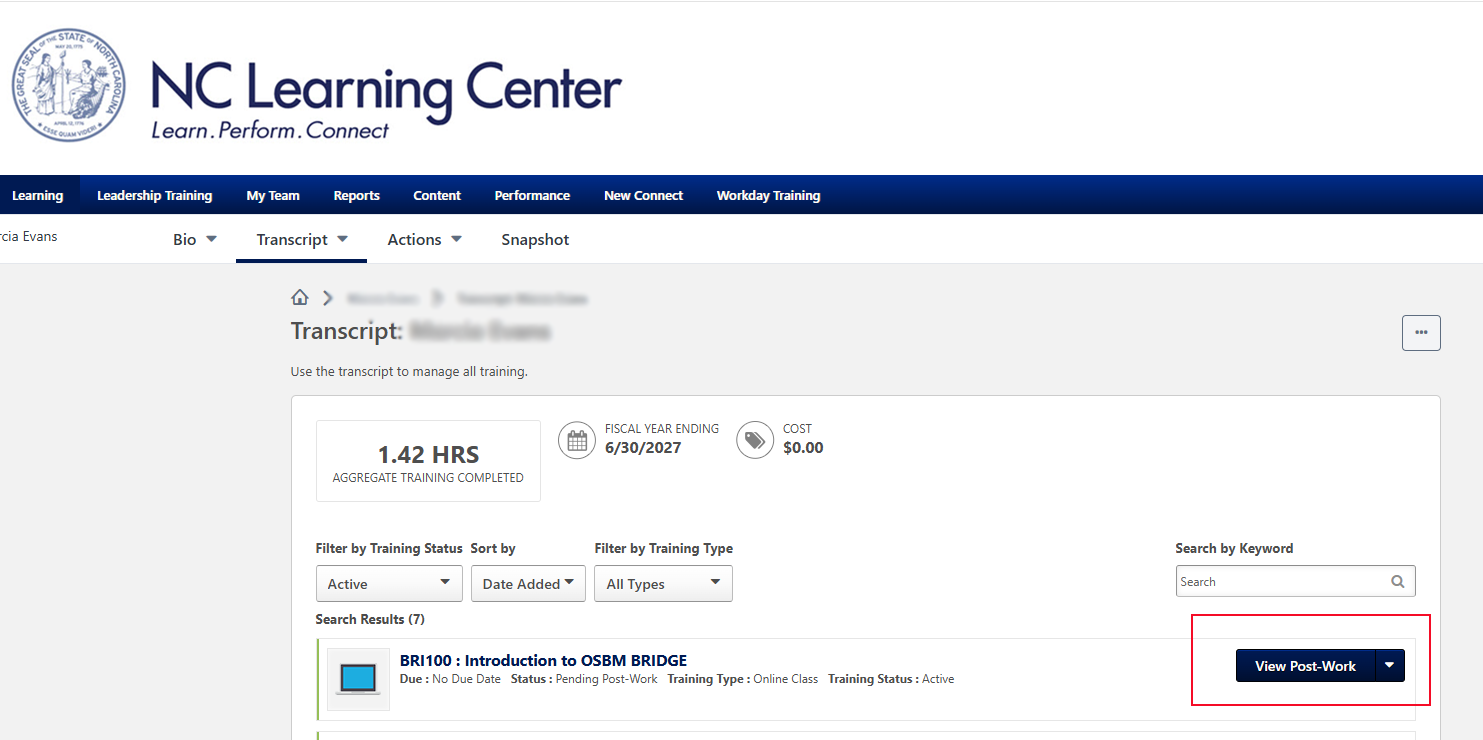
In your transcript, click the View Post-Work button for the class that is pending post-work.
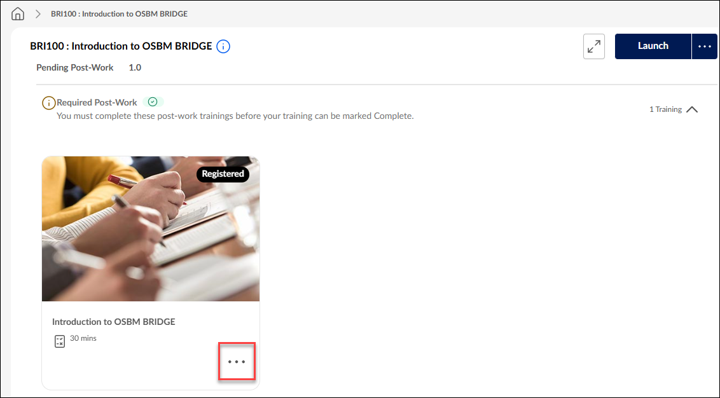
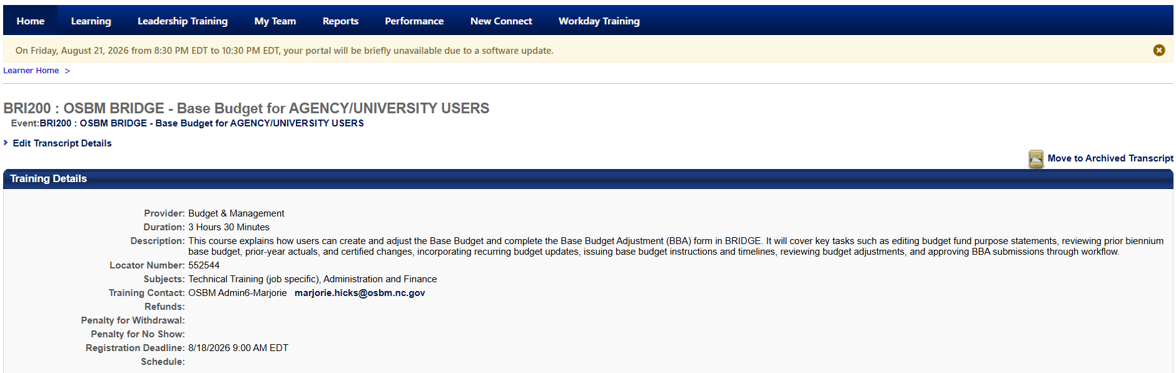
This opens the training status page (see screenshot #1 below) or the training details page (see screenshot #2 below) depending on how your account is configured.
Screenshot #1 Training Status page. See steps to follow if you have this page.
Screenshot #2 Training Details page. See steps to follow if you have this page.
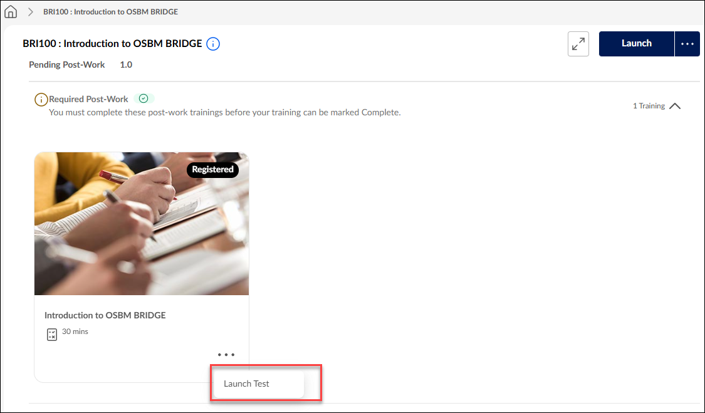
Option 1: Launch Test from the Training Status page
Click the three dots in the class card.
Click Launch Test
Option 2: Launch Test from the Training Details Page
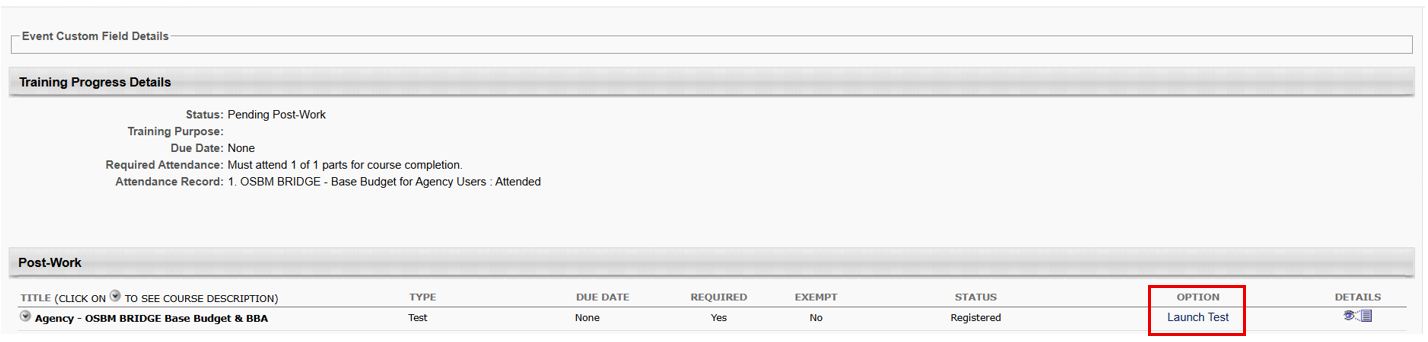
Scroll down the page to the section titled Post-Work and click the word “Activate” in the column titled Option.
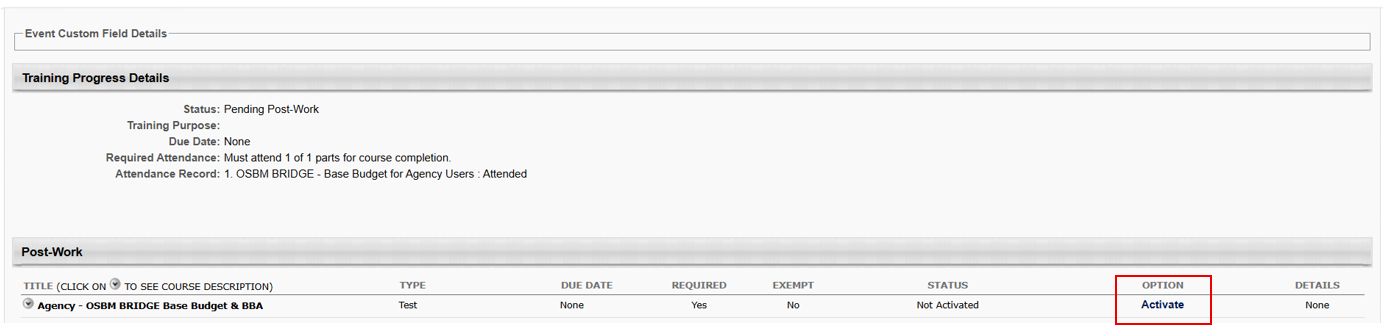
After clicking Activate, the link in that section will change to "Launch Test." Click the launch test link.
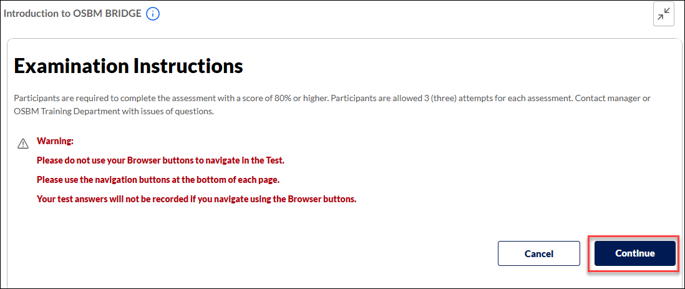
After you click launch test in either the Training Status or Training Details page, a screen will open to explain the test. Click the Continue button to begin the test.
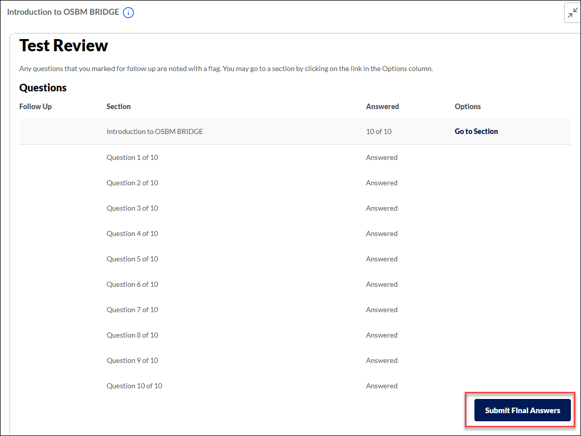
After completing the exam, you click on the Review Answers button. This opens the Test Review screen.Click the button at the bottom of the screen to Submit Final Answers.
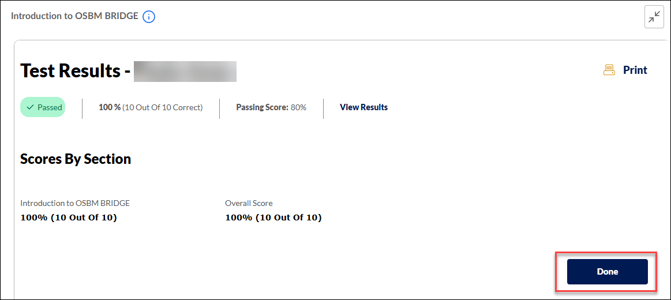
Your test results page will open. If you had a passing score, you have successfully completed the post-work.
To confirm the class is completed, you can go back into View Your Transcript by selecting that option in the Learning menu of the LMS homepage.