
Steps to Review BD307 Reports in IBIS
You can access the BD307 report in IBIS from either the Self-Service Reports folder or the System-Run Reports folder.
When accessing the report from the Self-Service Reports folder, you will be able to produce a report with the most current data that is refreshed every hour. When accessing the report from the System-Run Reports folder, you will obtain a system generated report with data updated from the previous night.
From the Self-Service Reports folder:
- Log into IBIS.
- Click on Reports in the left-hand menu.
- Once on the report page, click Self Service Reports.
- Click the Certification Reports Folder.
Click on BD307 Original Report link to generate the report immediately.
Note: If you want to select the format and delivery method of the BD307, locate the “Run with Options” icon on the right side of the screen under the “Actions” header as shown below. (i.e. if you want to email an Excel version of the BD307)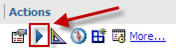
For instructions on the “Run with Options” feature, please access the Reports User Guide and select the link for #3 in the Table of Contents titled “Run with Options.”
- After clicking on the BD307 Original Report link, you will see a prompt page where you select criteria for your report (Choose Report, Cost Center Level, Biennium, BRU, and Budget Code). When finished selecting the criteria, click Finish at the bottom of the page to produce your report.
- Once finish is clicked, the report will be produced.
From the System Run Reports folder
- Log into IBIS.
- Click on Reports in the left-hand menu.
- Once on the report page, click System Run Reports.
- Click the Certification Reports Folder.
- Click on BD307 Original Reports Folder.
Click on the second icon under the Actions header on the right side of the screen (View the output versions…)
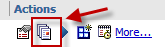
- Check the date of the report you need and click PDF on the right side of the screen to view that day’s report.